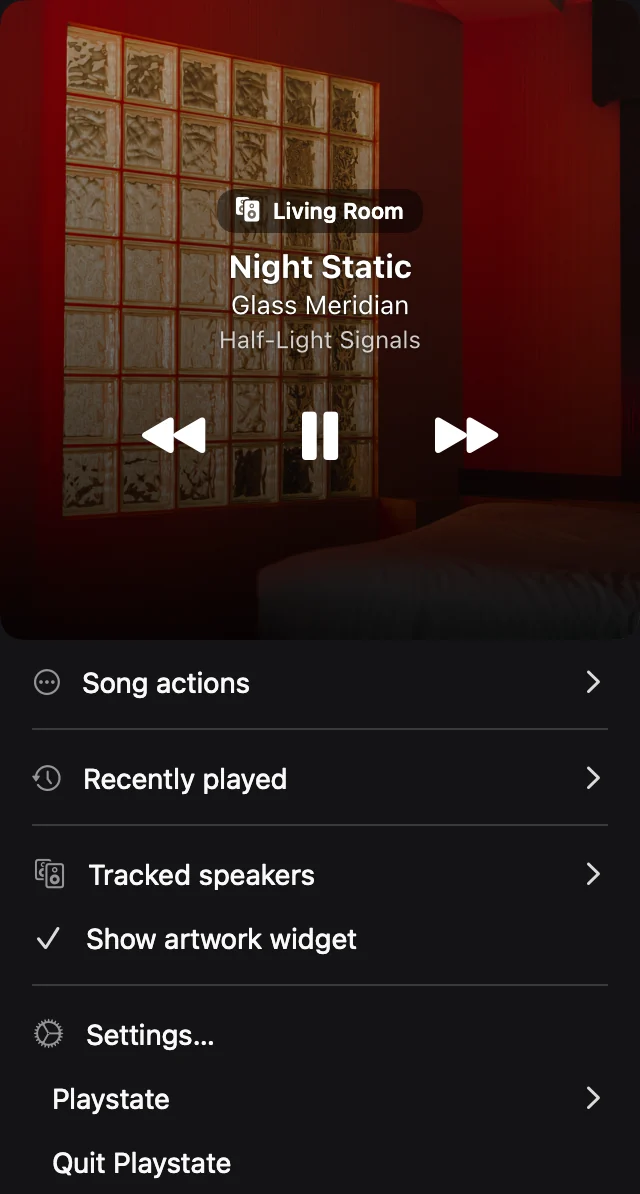
First, identify what is playing the music
This workflow is for music playing independently on HomePod, such as a session started on the speaker. If your Mac’s Music.app is sending the audio, closing it can stop playback; a remote does not replace the player.
Connect and select
Open Playstate on a Mac running macOS 15 or later. Keep it on the same local network as your HomePod and allow local-network access. Select the intended speaker and check that the displayed track matches what you hear.
Make one small adjustment
Open the menu-bar controls and try pause, skip, or a small volume adjustment. Confirm that the intended speaker responds. Controls and track information depend on the speaker software and playback source.
If the speaker is unavailable
Check local-network permission and whether your network isolates devices. Use the controller that started playback to confirm the speaker itself is reachable. Playstate cannot fix an unreachable speaker or every AirPlay discovery problem.
Try it on your Mac
The full app is free for 1 day, starting when it first connects to a speaker or you use a playback or volume control. No card is required. A personal license is US$7, paid once.
Try free for 1 day