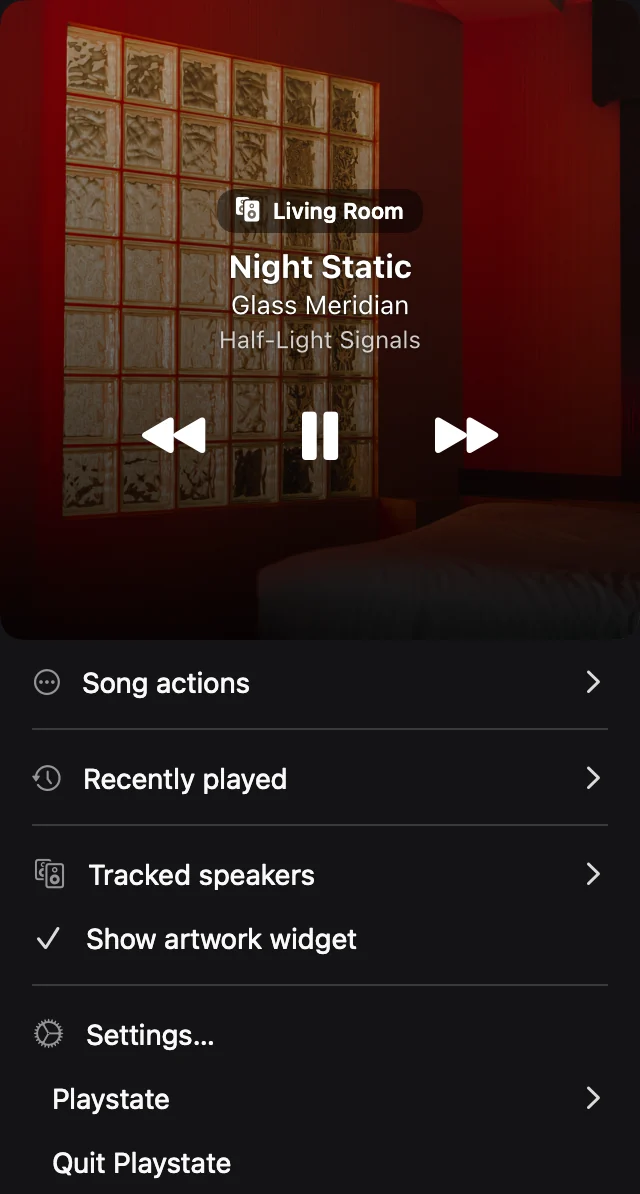
Check the speaker outside Playstate
Confirm your HomePod is powered on and reachable using its usual Apple controls. If it is unavailable there too, resolve the speaker or network connection first.
Check the local network
Your Mac and HomePod need to be on the same local network. Guest networks and device-isolation settings can prevent devices from discovering each other even when both have internet access. On a managed network, ask the administrator whether local device discovery is allowed.
Check permission and source selection
In macOS System Settings, check Playstate’s access under Privacy & Security → Local Network. Then check the sources selected in Playstate Settings. Music.app automation permission is separate from access to network speakers.
Distinguish discovery from playback
A visible speaker with no track information is a different problem from a missing speaker. Start playback using the usual controller and check again. Support depends on speaker software and playback source; Playstate cannot make every configuration compatible.
Ask for help with the useful details
Contact support@playstateapp.com with your macOS version, speaker model, how playback started, and whether the speaker is missing or just not showing a track. Do not send passwords or license keys. Try your setup during the free trial before purchasing.
Try it on your Mac
The full app is free for 1 day, starting when it first connects to a speaker or you use a playback or volume control. No card is required. A personal license is US$7, paid once.
Try free for 1 day